 eSIM Today
How to Install & Activate an eSIM on iPhone (2026)
By eSIM Today Editorial4 min read
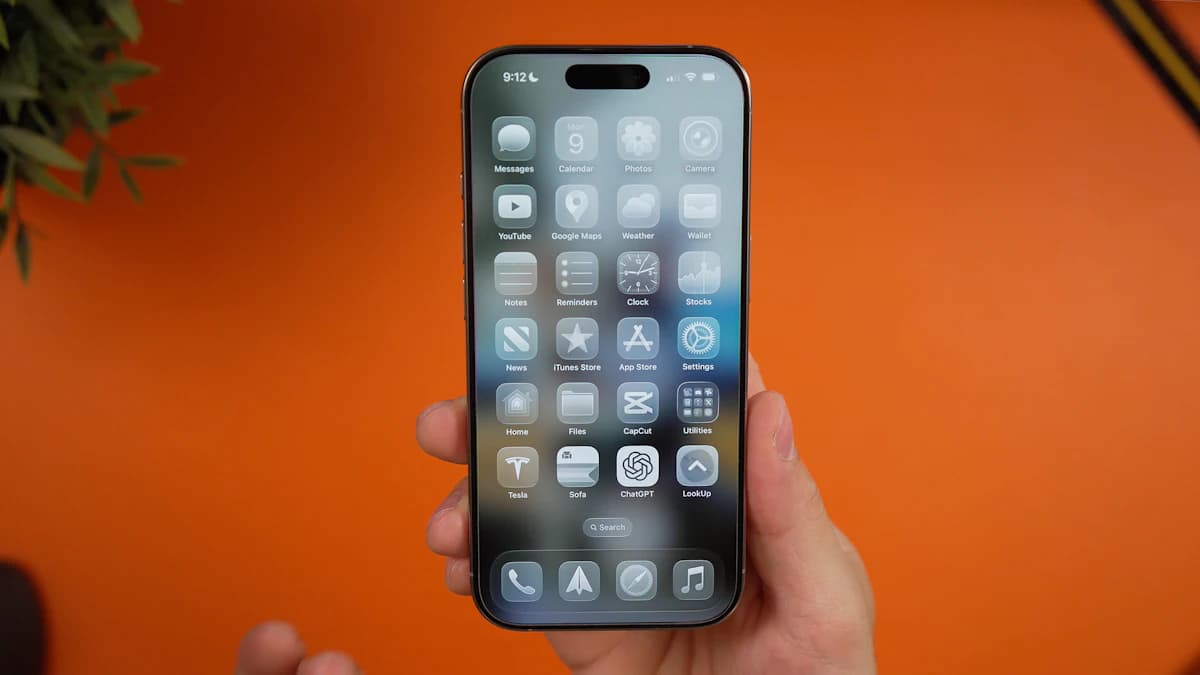
Installing a travel eSIM on your iPhone takes about two minutes, and you can do it before you leave home. This guide walks through both install methods — scanning a QR code and entering details manually — plus how to choose which line uses data and how to fix the most common "No Service" problem.
Before you start
Two quick checks save a lot of frustration:
- Your iPhone supports eSIM. That's iPhone XS, XR, and every model since (including SE 2020 and later). US iPhone 14 models and newer are eSIM-only.
- Your iPhone is carrier-unlocked. If your phone is tied to a home carrier, it may refuse a new eSIM. Check under Settings → General → About → Carrier Lock — it should read "No SIM restrictions."
- You have Wi-Fi. You need a connection to download the eSIM profile. Do this step at home before you fly.
Have your eSIM Today order open — you'll need the QR code or the manual activation details from your confirmation.
Method A — Install with a QR code (easiest)
- Open Settings → Cellular (or Mobile Service in some regions).
- Tap Add eSIM (or Add Cellular Plan).
- Tap Use QR Code.
- Point your camera at the QR code from your eSIM Today confirmation. If you're viewing the code on the same iPhone, tap Enter Details Manually instead (see Method B).
- Tap Continue, then Add eSIM. Your iPhone downloads the plan — this takes a minute.
Method B — Install manually (enter details)
Use this if you don't have a separate screen to scan from.
- Go to Settings → Cellular → Add eSIM → Use QR Code → Enter Details Manually.
- Enter the SM-DP+ Address and Activation Code exactly as shown in your eSIM Today confirmation.
- Tap Next, then Add eSIM to download the plan.
Set up your plan after install
Once the plan downloads, iPhone walks you through a few choices:
- Label the plan. Pick a clear name like "Travel" or "Japan" so you can tell it apart from your home line.
- Default Line. Keep your home number as the default for calls and iMessage so you don't miss anything.
- Set this to your . Turn on only if you want iPhone to fall back to your home line — for most travellers, leave it off to avoid roaming charges on your home plan.
Ready to get connected?
Browse travel data plans for 190+ destinations — installed in minutes, no physical SIM.